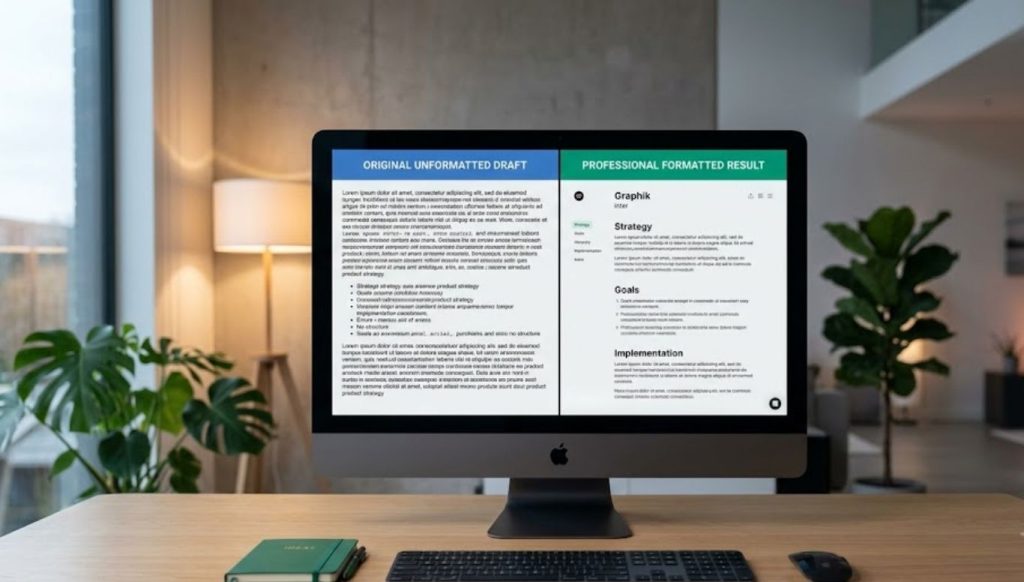
You paste 500 words into WordPress, and suddenly every heading looks wrong. Some words are all caps. Prepositions like of, with, and the show up capitalized in the middle of a title. Sentence case turns into random case. The text that looked clean in your document looks broken in the editor.
This is one of the most common formatting problems content writers, data managers, and bloggers face. The good news is that every one of these capitalization errors has a specific cause and a specific fix. This guide covers what breaks capitalization in bulk text, why prepositions behave differently across tools, and which solutions actually work at scale.
Why Capitalization Breaks When You Copy and Paste Bulk Text
When you copy text from one platform and paste it into another, you are not just moving words. You are moving hidden formatting data, encoding characters, and style rules that the source editor applied. The destination editor reads some of that data and ignores the rest, which causes inconsistency in how letters appear.
The three main sources of this problem are:
Hidden formatting characters travel with copied text. Microsoft Word, Google Docs, and PDF exports all embed invisible characters that carry font, style, and case instructions. When you paste into a plain HTML editor or a WordPress block, those characters conflict with the editor’s own rendering rules.
Smart quotes and encoding differences also trigger display issues. A curly apostrophe from Word renders differently than a straight apostrophe in HTML, and this kind of mismatch can affect how text tools interpret word boundaries, which leads to wrong capitalization at those points.
CSS text-transform rules on your WordPress theme can override what you type. If a theme applies text-transform: uppercase or text-transform: capitalize to headings, every heading on your site shows in capitals even if you typed it in sentence case. The problem is not in your content, it is in the stylesheet.
Why Prepositions Like “of,” “with,” and “the” Are the Most Problematic Words
This is the most misunderstood part of capitalization formatting. Prepositions break inconsistently because the rules around them are genuinely inconsistent across style guides.
In English title cases, short prepositions stay lowercase unless they open or close a title. Words like of, in, at, to, with, and the should remain lowercase in the middle of a heading. This is the rule in AP Style, Chicago Manual of Style, APA, and MLA. But each guide defines “short” differently, and no two automatic tools agree on where to draw the line.
When you run bulk text through an automated formatter that does not understand context, it either capitalizes everything (giving you “The Guide To Writing Of Content”) or it lowercases everything except the first word. Neither result is correct by standard style rules.
The deeper problem is that some words can be prepositions in one sentence and verbs or adverbs in another. The word up in “Sign Up Now” should be capitalized because it functions as a particle that changes the meaning of the verb. But a basic case converter sees it as a short preposition and lowercases it.
Microsoft Word and Google Docs Defaults vs. What You Actually Need
Both Microsoft Word and Google Docs offer built-in case management. They are designed for single documents, not bulk text operations across multiple editors and platforms.
What Microsoft Word Does
Microsoft Word gives you the Shift + F3 shortcut to cycle through lowercase, uppercase, and Capitalize Each Word modes. You can also go to Home > Change Case to access five options: Sentence case, lowercase, UPPERCASE, Capitalize Each Word, and tOGGLE cASE.
Word’s AutoCorrect also handles specific situations automatically. It fixes accidental use of the Caps Lock key, corrects two initial capitals (like “THe” to “The”), and capitalizes the first word of each sentence. These corrections work well while you are actively typing in Word.
The limitation appears when you paste bulk text that already has incorrect capitalization. AutoCorrect does not retroactively scan and fix existing text unless you manually select it and apply a case change. And Word’s “Capitalize Each Word” option does not follow style guide rules, it capitalizes every single word including of, a, and, and the.
What Google Docs Does
Google Docs offers case conversion under Format > Text > Capitalization. The same three options are available: lowercase, UPPERCASE, and Title Case. Google’s Title Case, like Word’s Capitalize Each Word, also capitalizes all words without exception. Prepositions, articles, and conjunctions all get capitalized, which violates standard title case rules.
Neither Word nor Google Docs has a style-guide-aware bulk case converter built in. They apply mechanical rules across all words without understanding grammar or word function.
The Gap These Tools Leave Open
| Feature | Microsoft Word | Google Docs | Online Case Tools |
| Sentence case | Yes | Yes | Yes |
| Title case (all words) | Yes | Yes | Yes |
| Style-guide-aware title case | No | No | Yes (advanced tools) |
| Bulk paste and convert | Limited | Limited | Yes |
| Preposition handling | No | No | Yes (rule-based tools) |
| Browser-level processing | No | No | Yes |
The table shows that Word and Google Docs cover basic use cases but fall short for anyone managing large volumes of text that needs to follow consistent title case rules with correct preposition handling.
The Right Tools to Fix Capitalization in Bulk Text
Online Case Converter Tools
Dedicated online case converters process text directly in the browser. You paste your full content, select the case type, and copy the corrected output. No installation is required, and the tool does not store your text after you close the session.
Tools like Convert Case, Title Case Converter, and similar platforms offer sentence case, title case, UPPERCASE, lowercase, and toggle case options. The better ones follow specific style guide rules and keep short prepositions and articles lowercase in title case mode.
These tools handle bulk text more reliably than Word or Docs because they apply a consistent rule set across the entire pasted block, including headings, subheadings, and body paragraphs, all at once.
What Browser-Level Processing Means for Your Workflow
When a case tool processes text at the browser level, it means the conversion happens entirely on your device inside the browser tab. Your content does not travel to a server. This matters for anyone working with client content, unpublished articles, or sensitive editorial material.
Browser-level processing also means the tool works without logging in, without saving history, and without memory of previous sessions. Each time you open the tool, it starts fresh. This is called memory isolation, and it ensures that bulk text you process in one session cannot appear in another session or on another device.
For writers running multiple client projects, this is a meaningful advantage. A text block from one project cannot accidentally surface in another.
Excel Functions for Bulk Capitalization in Data
If your bulk text lives in a spreadsheet rather than a content editor, Excel provides three dedicated functions.
=PROPER(A1) capitalizes the first letter of every word in a cell. This is the equivalent of “Capitalize Each Word” mode.
=UPPER(A1) converts all text to uppercase.
=LOWER(A1) converts all text to lowercase.
These functions work across entire columns. If you have 500 rows of product names or article titles, applying =PROPER(A1) and dragging it down the column corrects every entry in seconds. The result column can then be copied and pasted as values into your CMS or editor.
The limitation of =PROPER is the same as Word’s Capitalize Each Word. It capitalizes every word, including prepositions and articles. For a clean title case with correct style guide handling, you need an online tool, not Excel.
How to Fix Capitalization in WordPress Specifically
WordPress adds its own layer of complexity because capitalization can be broken at two separate points: inside the editor, or inside the theme’s CSS.
Inside the Block Editor
When you paste text into the Gutenberg block editor, WordPress strips most formatting from Word and Google Docs automatically. However, if you paste into the HTML view of a Classic block, hidden span tags and inline styles can survive and override how text displays.
To paste clean text without hidden formatting, use the keyboard shortcut Ctrl + Shift + V on Windows or Cmd + Shift + V on Mac. This pastes as plain text and removes all source formatting. After a plain paste, you can apply your own case formatting consistently.
If your headings appear in a different case than what you typed, check whether the issue is in the editor or in the theme. Copy the heading text, paste it into a plain text file, and check the capitalization there. If it looks correct in plain text but wrong on the live site, the problem is in the theme CSS, not in your content.
Theme CSS Overrides
Some WordPress themes apply text-transform: uppercase or text-transform: capitalize to heading elements like H1, H2, and H3. This forces every heading to appear in a specific case regardless of what you typed.
To check this, right-click a heading on your live site and select Inspect. Look for text-transform in the CSS panel. If you see it applied to a heading selector, you can override it by adding the following to your theme’s Custom CSS section under Appearance > Customize > Additional CSS:
h1, h2, h3 {
text-transform: none;
}
This removes the forced capitalization and lets your actual content control how headings appear.
A Practical Workflow to Fix Broken Capitalization at Scale
If you manage a site with hundreds of posts, or if you regularly produce bulk content for multiple publications, a repeatable process saves significant time.
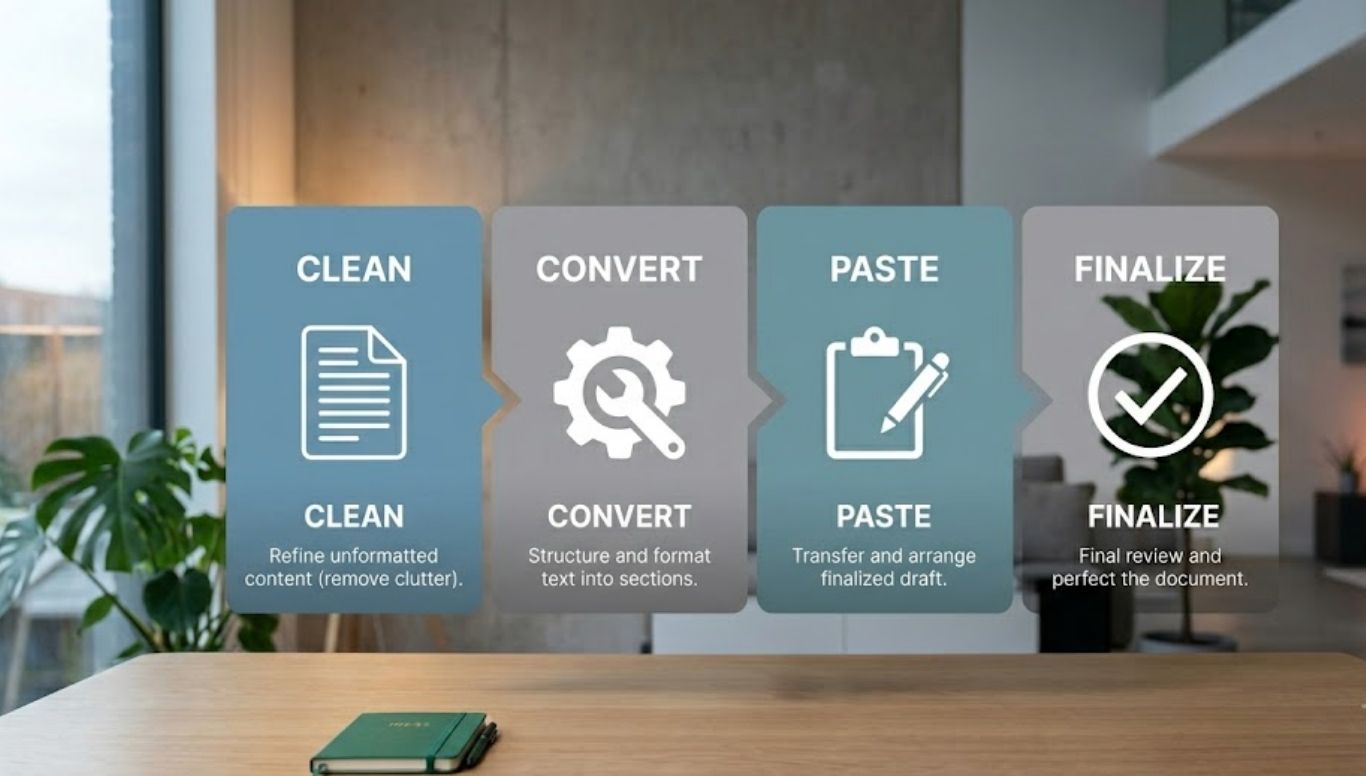
Step one is to paste all raw text into a plain text editor like Notepad on Windows or TextEdit on Mac with plain text mode enabled. This strips hidden characters before you do anything else.
Step two is to run the cleaned text through a browser-based case converter. Select the case type you need (sentence case for body text, style-guide title case for headings) and convert. Fixing these titles correctly isn’t just about aesthetics; it directly impacts your Title Capitalization CTR, ensuring your content stands out in search results.
Step three is to paste the converted text into your CMS using the plain paste shortcut so no new formatting is introduced.
Step four is to spot-check prepositions in headings manually. No tool handles every edge case perfectly. Words like up, over, between, and through can function as either prepositions or particles depending on context, and a quick manual pass takes less than a minute for a standard article.
This four-step process handles 95% of all capitalization errors without any manual character-by-character correction.
Frequently Asked Questions
Why does pasting from Word break capitalization in WordPress?
Word embeds hidden formatting characters in copied text. When pasted into WordPress, these characters conflict with the editor’s rendering, causing inconsistent case display. Paste as plain text using Ctrl + Shift + V to avoid this.
Why are words like “of” and “the” sometimes capitalized and sometimes not?
Different style guides follow different rules. Chicago Manual of Style keeps prepositions lowercase regardless of length. AP Style capitalizes prepositions of four or more letters. Most automated tools apply one rule set without letting you choose, which is why results look inconsistent.
Does Microsoft Word title case follow style guide rules?
No. Word’s Capitalize Each Word mode capitalizes every word in the selection, including articles, conjunctions, and prepositions. This does not match AP, Chicago, APA, or MLA title case rules.
What is the fastest way to fix capitalization in a large text block?
Paste your text into a browser-based case converter tool, select your case type, and copy the result. This takes under 30 seconds for a full article and is more accurate than manual editing.
Can Excel fix capitalization for bulk data?
Yes. Use =PROPER(cell) for capitalize-each-word formatting, =UPPER(cell) for all caps, or =LOWER(cell) for all lowercase. These functions apply instantly across thousands of rows.
What causes random capitalization in a pasted text block?
The most common cause is a mix of source formatting. If text was assembled from multiple documents, emails, or web pages, each source may have applied different case rules, and the pasted result shows all of them together.
How do I know if my WordPress theme is forcing capitalization?
Right-click any heading on your live site and select Inspect. Look for text-transform in the CSS rules. If you see uppercase or capitalize applied to heading elements, the theme is overriding your content’s actual capitalization.
Is it safe to paste client content into online case converter tools?
Browser-based tools that process text locally do not send content to a server. Each session starts fresh with no memory of previous input. This makes them safe for client or unpublished content.
Why does Gutenberg strip some formatting but not all?
Gutenberg is designed to remove most inline styles from pasted content, but it preserves some structural elements. Pasting into an HTML block or a Classic block preserves more raw markup, including hidden span tags that carry case information.
What is the difference between sentence case and title case?
Sentence case capitalizes only the first word of a sentence and proper nouns. Title case capitalizes the first word and all major words in a heading, while keeping articles, short prepositions, and conjunctions lowercase. Sentence case is recommended for most body text; title case is standard for headings and article titles.

Hi, I’m Sidra Azeemi, a freelance content writer and guest post specialist with 3+ years of experience. I offer content writing and on-page SEO services. I write about celebrities, net worth, and entertainment.